

| 10 Phone Tricks You Never Knew |
Your Phone Can Do WHAT? 10 Hidden Features You’re Missing
*I’ve been using smartphones for 10 years. My 12-year-old nephew taught me something new last week. Here’s what I learned.*
Let me tell you something embarrassing.
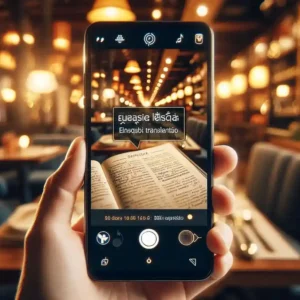
Last month, I was at a restaurant. The menu was in Spanish. I don’t speak Spanish.
So I opened Google Translate. Started typing each word. Letter by letter. Slow. Painful.
My 12-year-old nephew was sitting across from me. He watched me struggle.
“Uncle, just point your camera at it,” he said.
“What?”
“Point your camera. It translates instantly.”
I pointed my camera at the menu. Within one second, the Spanish words turned into English. Right there on my screen.
I felt so stupid. I’ve been using smartphones for a decade. And a kid taught me something my phone could always do.
That moment hurt my pride. But it also made me curious. What else have I been missing?
I spent two weeks digging through my phone. Every setting. Every app. Every hidden menu.
I found 10 features I never knew existed. Some saved me hours. Some made me safer. Some were just cool.
Here they are. No fluff. Just real features you can use today.
1. Your Camera Translates Anything (No Typing Needed)
Remember my restaurant story? Here’s exactly how it works.
Open your camera app. Point it at any text in a different language. Look for a small square icon (Google Lens on Android) or a text icon (on iPhone). Tap it.
Suddenly, your camera becomes a translator.
What you can do:
Point at a restaurant menu → reads in your language
Point at a street sign → translates instantly
Point at a product label → tells you what’s inside
I used this at an Asian grocery store last week. Pointed at an ingredient label. Learned it was “dried mushroom.” Bought it. Dinner was delicious.
Where to find it: Google Lens on Android is built into the camera. On iPhone, open Camera → point at text → tap the text icon.
External link: Google Lens official website
2. Your Phone is a Scanner (Stop Buying Scanners)
I almost bought a scanner last year. Receipts everywhere. Contracts to sign. Documents to send.
Then a friend laughed at me. “Just use your phone,” she said.
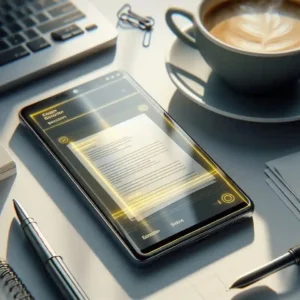
Open your Notes app (iPhone) or Google Drive (Android). Look for a camera icon. Point your phone at the document. The phone detects the edges automatically. Converts it into a clean PDF.
What I’ve scanned:
Rental agreements (signed and sent the same minute)
Receipts for expense tracking
Old family photos to share with relatives
Business cards (directly saved to contacts)
Real example: Last month, I needed to sign a contract. The client was in another city. I printed it, signed it, scanned it with my phone, and emailed it back in under 3 minutes.
Where to find it: iPhone → Notes app → Camera icon → Scan Documents. Android → Google Drive → + → Scan.
3. Your Phone is a Level Tool (For Hanging Pictures Straight)
I hung a picture frame last year. It was crooked. I didn’t notice until my wife pointed it out. Had to redo the whole thing.
Then I discovered my phone has a built-in level tool.
How it works: Open the Measure app (iPhone) or Google Measure (Android). Tap “Level.” Place your phone on any surface. It tells you if it’s perfectly horizontal (0 degrees) or tilted.
Where I use this:
Hanging picture frames (no more crooked walls)
Checking if a table wobbles
Installing shelves
Setting up a projector
Real example: I hung 5 picture frames in my hallway last weekend. Used my phone as a level for each one. Every frame is perfectly straight. My wife noticed. She was impressed. That never happens.
Where to find it: iPhone → Measure app → Level. Android → Google Measure (download from Play Store).
4. Your Phone Names Any Song (Shazam Who?)
You’re in a coffee shop. A song plays. You love it. You don’t know the name. You’ll never hear it again.
Except now you will.
How it works: Open Google app (or ask Google Assistant). Tap the microphone. Then tap “Search a song.” Hold your phone toward the music.
Within seconds, your phone tells you the song name, artist, and album.
What I’ve identified:
A song from a movie credits scene
Background music from a YouTube video
A track playing at a friend’s wedding
My neighbor’s loud music (so I could complain by name)
Real story: I was driving last month. Heard a song on the radio. Loved it. Didn’t catch the name. Pulled over. Opened my phone. Identified it in 5 seconds. Added to my playlist.
Where to find it: Google app → Microphone icon → “Search a song.” Or just say “Hey Google, what’s this song?”
5. Your Phone Calls 911 Automatically (Set This Up Today)
I hope you never need this. But if you do, it could save your life.
What your phone can do:
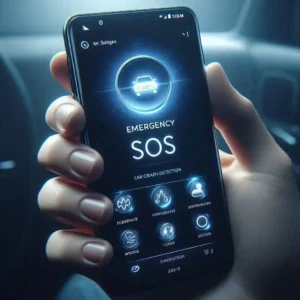
Detect if you’ve been in a severe car crash
Automatically call emergency services
Share your location with first responders
Alert your emergency contacts
How to set it up (do this right now):
iPhone: Settings → Emergency SOS → Turn on “Call with 5 presses” and “Call after severe crash.”
Android: Settings → Safety & emergency → Turn on “Car crash detection” (on Pixel phones).
Real story: A friend of a friend fell off her bike. Her phone detected the crash. It started a 10-second countdown. She didn’t cancel it (she was unconscious). The phone called emergency services. They found her using her location.
She’s fine now. Thanks to a feature she didn’t know existed.
External link: FTC emergency preparedness guide
Do this today. Don’t wait.
6. Your Phone is a Magnifying Glass (For Tiny Text)
I’m not old. But my eyes get tired. Reading tiny prescription bottles. Checking expiration dates. Seeing a menu in a dark restaurant.
My phone solved all of this.
How it works:
iPhone: Settings → Accessibility → Magnifier → Turn on. Now triple-click your power button. Your camera becomes a magnifying glass. Up to 500% zoom.
Android: Download “Magnifier” from Google (free). Or just use your camera zoom.
Where I use this:
Reading pill bottles (smallest text ever)
Checking serial numbers on electronics
Helping my parents read anything
Real example: My mom couldn’t read the instructions on her new thermostat. I showed her the magnifier feature. She triple-clicked her phone. Read the instructions. Installed it herself.
7. Your Phone Records Your Screen (For Tutorials)
I was trying to explain to my dad how to change his ringtone. Over the phone. “Tap settings. Then sounds. Then ringtone.”
He got lost at “settings.”
Then I remembered screen recording.
How it works: Swipe down twice on Android. On iPhone, open Control Center. Look for the screen recording button (a circle inside a circle). Tap it. Your phone records everything on your screen.
What I use it for:
Sending tutorials to my parents (they watch, they learn, they stop calling me)
Reporting bugs to app developers
Capturing game highlights
Saving video calls (with permission)
Real example: My friend couldn’t figure out a setting on her phone. I recorded my screen doing the steps. Sent her the video. She followed along. Problem solved in 2 minutes.
Where to find it: iPhone → Settings → Control Center → Add Screen Recording. Android → Swipe down → Edit → Add Screen recorder.
8. Your Phone Automates Your Morning (While You Sleep)
I hate repetitive tasks. Turning off my alarm. Checking traffic. Opening the news.
My phone does all of this for me now.
How it works:
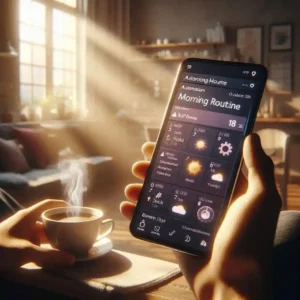
iPhone: Shortcuts app → Automation → Time of day → Add actions.
Android: Google Assistant → Routines.
My morning routine:
7:00 AM → Phone turns on (was on Do Not Disturb)
7:01 AM → Weather forecast appears
7:02 AM → Calendar shows my first meeting
7:05 AM → Traffic report to work
I don’t touch my phone. Everything happens automatically.
What else can you automate:
Turn on Do Not Disturb during meetings (using calendar)
Send a text when you leave work (“On my way home”)
Lower brightness at sunset
Turn off Wi-Fi when you leave home
Where to find it: iPhone → Shortcuts app. Android → Google Assistant → Routines.
9. Your Phone Finds Anything You’ve Lost (Even Your Keys)
I lose things constantly. Keys. Wallet. AirPods.
My phone helped me find all of them.
How it works:
Most phones have “Find My Device” built in. You log into a website from any computer. It shows your phone on a map. You can make it ring even if it’s on silent.
But here’s what I didn’t know. You can attach small Bluetooth trackers (like Tile or AirTag) to your keys, wallet, bag. Your phone can find them.
The genius part: If YOU can’t find your phone, you can press a button on the tracker to make your phone ring.
What I track:
My keys (Tile attached)
My wallet (AirTag inside)
My parked car (dropped a pin on Google Maps)
Real story: Last winter, I dropped my keys in a snowbank. Spent 20 minutes searching. Opened my phone. Clicked “find keys.” The keys started beeping. Found them under 6 inches of snow.
Where to find it: iPhone → Find My app. Android → Find My Device (Google).
10. Your Phone is a Tape Measure (No Tools Needed)
I was hanging a picture last year. Couldn’t find my tape measure.
Then I remembered something. My phone has a built-in measuring tool. It uses the camera and augmented reality.
How it works: Open the Measure app (iPhone) or Google Measure (Android). Point your camera at an object. Tap to set start and end points. Your phone shows the measurement.
What I’ve measured:
A bookshelf (to see if it would fit in my car)
A suitcase (to check airline size limits)
A room (to buy the right size rug)
How accurate is it? I tested it against a real tape measure. Within half an inch. Good enough for furniture. Not good enough for construction.
Where to find it: iPhone → Measure app. Android → Google Measure (download from Play Store).
What I Learned
I’ve used smartphones for over a decade. Thought I knew everything. I was wrong.
These features saved me time, money, and stress.
The best part? They’re all free. Already on your phone. Just waiting for you to discover them.
FAQ
Are these on every phone?
Most work on both iPhone and Android. Some (like car crash detection) need newer models.
Do they cost money?
All free. Built into your phone.
What should I try first?
Camera translate. Point at any text. Watch it change. You’ll be hooked.

Final Thoughts
My nephew embarrassed me in a restaurant.
But I’m glad he did. That one feature opened my eyes. If I missed THAT, what else was I missing?
So I dug deeper. Found 9 more.
Now it’s your turn. Pick one feature from this list. Try it today.
Your phone is smarter than you think. It’s time you found out how smart.
More from Mag Tech Hub
How to Start a Tech YouTube Channel – magtechhub.com/how-to-start-tech-youtube-channel-2026/
Honest Facebook Earnings – magtechhub.com/honest-facebook-earnings-what-actually-works/
10 TikTok Ideas That Actually Got Views – magtechhub.com/10-tiktok-ideas-that-actually-got-views/
Is Your Phone Listening? 7 Privacy Fixes – magtechhub.com/phone-listening-7-privacy-fixes/
That Time I Lost 40 Hours of Work – magtechhub.com/lost-40-hours-work-recovered-files/