

I Deleted 40 Hours of Work — Here’s How I Got It Back
What happens when you delete a file? The answer might surprise you — and save your data one day.
Let me start with something embarrassing
Last year, I did something incredibly stupid.
I was cleaning my desktop. Deleting old screenshots. Random PDFs. Stuff I didn’t need anymore.
Then I saw a folder. Didn’t recognize the name. Thought it was junk.
Selected it. Pressed delete. Emptied the Recycle Bin.
Three seconds later, my blood went cold.
That folder wasn’t junk.
It was 40 hours of client work. A complete website project. Due in 48 hours.
I just stood there. Staring at my screen. My brain refused to accept what I had done.
“No no no no no,” I whispered.
I almost threw up.

Then I remembered something I had read years ago. Something about deleted files not really being gone.
That tiny memory saved me.
The one thing nobody tells you about deletion
Here’s the truth most people don’t know.
When you delete a file, your computer plays a trick on you.
It makes you THINK the file is gone. But really? It’s just hiding.
Let me explain with a simple picture.
Imagine your computer is a classroom with cubbies. Each cubby holds one student’s notebook.

When a student leaves the class, the teacher doesn’t remove the notebook from the cubby. She just takes off the name tag.
The notebook stays right where it is.
Later, a new student joins. The teacher puts a new name tag on the same cubby. Only THEN does she remove the old notebook.
That’s exactly how file deletion works.
Your computer just removes the “name tag” (the file’s address). The actual “notebook” (your data) sits there until something new comes along to replace it.
This is why recovery is possible. And this is why I got my 40 hours back.
My panic mode recovery (step by step)
After my initial shock, I did four things. In order.
First, I stopped touching my computer.
No new files. No browsing. No nothing. Every click could overwrite my lost work.
Second, I downloaded a free recovery tool.
I used Recuva. It’s free. It’s simple. It works.
Third, I ran a deep scan.
Took about 20 minutes. My heart was pounding the entire time.
Fourth, I saw my files.
There they were. All of them. With weird names like $R5T7G9.docx instead of client-project-final.docx. But they were there.
I recovered everything.

That day changed how I think about computers forever.
Where deleted files actually go (the journey)
Let me walk you through exactly what happens when you press delete.
Stop one: The Recycle Bin
First press of delete? Your file goes here. The file is 100% intact. It still takes up space. You can restore it with one click.
Here’s my pro tip: Before you panic, ALWAYS check the Recycle Bin. Half the “lost” files I’ve helped friends recover were sitting right there.
Stop two: The forgotten zone
Empty the Recycle Bin? Now your file enters the “forgotten” zone. The file’s “address” is removed. But the actual data remains. Your computer marks the space as “available for new stuff.” Nothing new has been written yet.
This is your recovery window. The longer you wait, the smaller this window gets.
Stop three: Gone forever
When you save new files, install apps, or even browse the web, your computer might write new data over your old file. New data replaces old data. Recovery becomes impossible.
This can happen in hours, days, or months. It depends on how much you use your device.

The rule is simple: The sooner you try to recover, the better your chances.
How to know if your deleted file can be recovered
Let me tell you what affects your chances.
If you deleted the file just a few hours or days ago, you have a good chance. The sooner, the better.
If you haven’t saved many new files since the deletion, you have a good chance. Every new file risks overwriting your lost data.
If you have an old-school hard drive (HDD), you have a good chance. These drives keep data until something overwrites it. I’ve seen files recovered from years ago.
But if you have a modern SSD with TRIM enabled, you need to act fast. TRIM actively erases deleted data in the background. Your window might be just hours.
If you’ve been using your device normally for weeks, your file is probably gone. Too much new data has been written.
If you ran a “secure erase” tool, your file is gone. Those tools are designed to make recovery impossible.
If you sold or gave away your device, assume your file is gone. Never assume the new owner can’t recover it.
Hard drives vs SSDs (this matters more than you think)
Not all storage is the same. This is crucial.
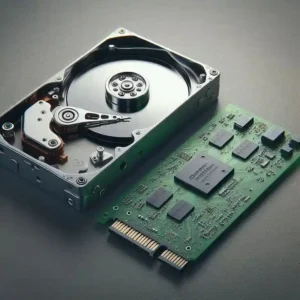
Old-school hard drives, or HDDs, are mechanical. They have spinning disks. Data sits until something overwrites it. You can recover files from YEARS ago. They’re slower, but more forgiving.
Modern solid-state drives, or SSDs, are completely different. They have a feature called TRIM. According to Kingston Technology, TRIM is a command that tells your SSD which data blocks are no longer needed and can be permanently erased.
TRIM actively erases deleted data in the background. Recovery can be impossible within HOURS.
What this means for you: If you have an SSD (most computers from the last 5-7 years), act FAST. Your recovery window might be very small.
Phones are different (and annoying)
Phones add another layer of complexity.
The basic process is simple. Delete a photo, and it goes to “Recently Deleted.” It stays there for 30 days on iPhones, or 30-60 days on Android. After that, the space is marked as free.
But here’s the complication: cloud backups.
You might delete a photo from your phone, but it’s still sitting in Google Photos, iCloud, Dropbox, OneDrive, or your old phone’s backup.
The Federal Trade Commission has a helpful guide on what actually gets deleted when you press delete on a phone.
Here’s my pro tip: Check your cloud accounts before assuming a file is truly gone.
The day I recovered 40 hours of work (real details)
Let me tell you exactly what happened.
After I realized what I had done, I didn’t touch my computer. No new files. No web browsing. Nothing.
I went to my friend’s laptop and searched for “free file recovery tool.” I found Recuva. Downloaded it to a USB drive.
I installed Recuva on my computer. Ran the deep scan option. It took about 20 minutes.
The scan showed hundreds of deleted files. Most were old junk I didn’t care about.
But then I saw them. My project files. All of them. The names were scrambled, but the content was intact.
I selected everything. Clicked “recover.” Saved it to an external hard drive (never save to the same drive you’re recovering from).
Everything came back. Every single file.
I stayed up until 3 AM that night, setting up automatic backups. Never again.

Free recovery tools that actually work
I’ve tested these. They’re safe. They’re free.
Recuva is best for Windows beginners. It’s simple. It works. I used it to recover my 40 hours. You can find it at ccleaner.com/recuva.
Disk Drill works on both Mac and Windows. It has a clean interface and good results.
PhotoRec is for advanced users. It works on any operating system. It’s powerful but not pretty.
TestDisk is for partition recovery. If you lost an entire drive, start here.
EaseUS has a free version with a 2GB limit. It’s easy to use and good for small recoveries.
My recommendation for beginners: Start with Recuva. It’s simple. It works. Don’t overcomplicate it.
How to permanently delete files (when you actually want them gone)
Sometimes you WANT files gone forever. For good.
For everyday privacy when selling your phone, a factory reset is usually enough for normal users. But technically, data CAN still be recovered.
For sensitive data like banking information, passwords, or private photos, use a “secure erase” or “shred” feature. These tools overwrite your data multiple times. Some antivirus software includes this.
For government-level privacy when selling a work laptop, physically destroy the storage drive. Or use professional-grade erasure tools. The NIST Special Publication 800-88 is the official government standard for data sanitization.
For most people, encryption plus a factory reset is enough. If your device was encrypted (most modern phones are), a factory reset makes data nearly impossible to recover.
What I learned from almost losing 40 hours
That panic taught me five lessons I’ll never forget.
First, backups are not optional. I now use the 3-2-1 rule. Three copies of my data. On two different types of storage. With one copy off-site in the cloud.
Second, stop using the device immediately. Every minute you use your computer after deleting a file, you risk overwriting it.
Third, recovery tools actually work. I didn’t believe it until I tried it. Free tools saved my career that week.
Fourth, SSDs are different. Modern drives can erase deleted data in hours. Time is NOT on your side.
Fifth, prevention is easier than recovery. A $50 external hard drive or a $6 monthly cloud backup would have saved me all that panic.

10 things you can do right now
Don’t wait until disaster strikes. Do these today.
One: Set up automatic backups. Windows has File History. Mac has Time Machine. Use them.
Two: Enable “confirm before delete.” Right-click the Recycle Bin, go to Properties, and check “Display delete confirmation dialog.”
Three: Stop using your drive when it’s 90% full. Full drives fragment data and make recovery harder.
Four: Know what drives you. HDD or SSD? This changes your entire recovery strategy.
Five: Install a recovery tool BEFORE you need it. Having Recuva ready saves precious time.
Six: Test your backups. A backup you’ve never tested is not a backup.
Seven: Use cloud storage for important files. Google Drive, Dropbox, and OneDrive keep version history.
Eight: Name your files clearly. “final-v3-FINAL-real-final.docx” is a disaster waiting to happen.
Nine: Don’t store everything on your desktop. The desktop is just a folder. And it’s easy to accidentally delete.
Ten: Relax. Most “lost” files are recoverable if you act fast and follow the right steps.

FAQ (from people who’ve been where I was)
I deleted a file 3 months ago. Can I get it back?
Unlikely, unless your drive is an old HDD and you barely used it. But it’s worth a quick scan with Recuva. You might get lucky.
Does a factory reset permanently delete everything?
On modern encrypted phones, yes, mostly. On old hard drives, no. Data can often be recovered. The FTC has a guide on this.
Are free recovery tools safe?
Most are, but always download from the official website. Recuva and Disk Drill are trustworthy.
How do I recover a deleted photo from my phone?
Check “Recently Deleted” in Google Photos or Apple Photos first. Files stay there for 30 days. Then check your cloud backup.
What’s the one thing I should do today?
Set up automatic backups. Right now. Seriously. Close this article and do it.
Final thoughts
I almost lost 40 hours of work because I was careless.
But I got it back because I understood one simple truth.
Deleting a file doesn’t erase it. It just hides it.
That knowledge saved me. It can save you too.
Here’s what I want you to remember.
Check the Recycle Bin first. Always.
Stop using your device immediately after accidental deletion.
Use a free recovery tool like Recuva. It works.
Set up automatic backups today. Not tomorrow. Today.
If you have an SSD, act fast. Your window is small.
Your files are valuable. Your time is valuable.
Don’t learn this lesson the hard way as I did.
Set up your backups. Know how recovery works. And when disaster strikes, don’t panic.
Take action.
More from Mag Tech Hub
How to Start a Tech YouTube Channel in 2026 – magtechhub.com/how-to-start-tech-youtube-channel-2026/
Honest Facebook Earnings: What Actually Works – magtechhub.com/honest-facebook-earnings-what-actually-works/