
Protect Your Personal Data from Hackers
Someone stole $500 from my friend’s bank account while he was drinking a latte. Here’s how it happened — and how to make sure it never happens to you.
The Coffee Shop That Cost $500
Let me tell you about my friend Ramesh.
Not his real name. But his story is real. And it still makes me angry.
Ramesh is an IT professional. He builds computer networks for a living. He knows more about technology than most people.
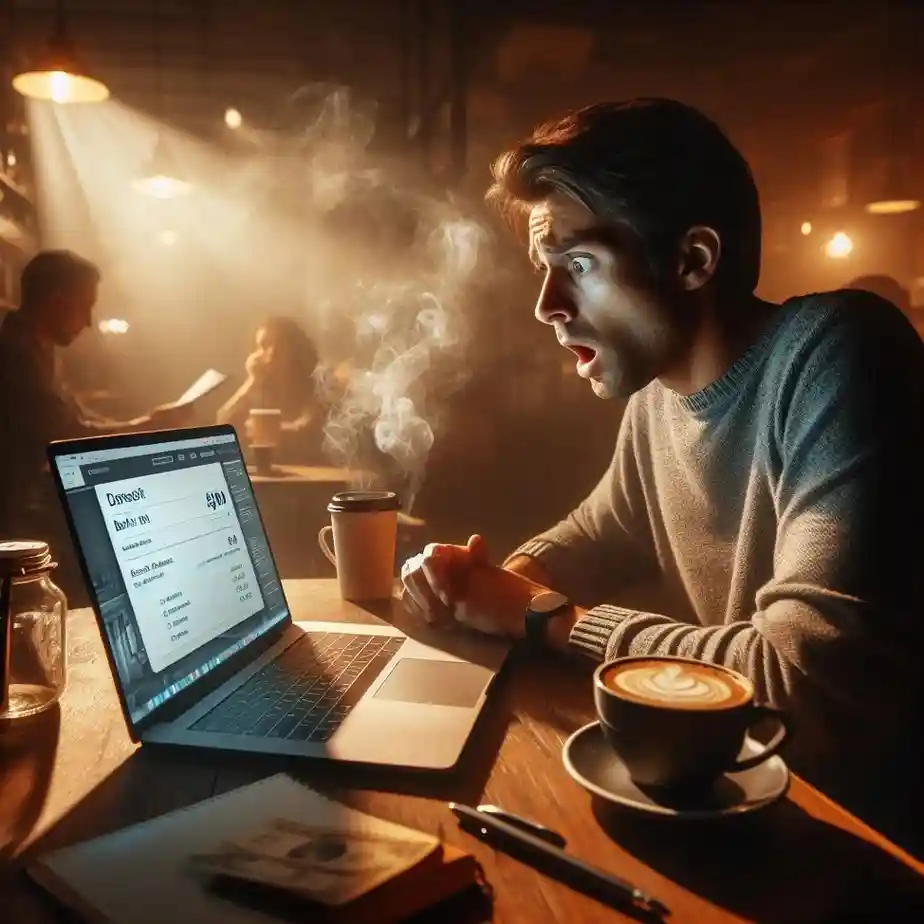
One Saturday afternoon, he stopped at a coffee shop. Ordered a latte. Connected to the free Wi-Fi. Checked his bank balance. Closed his laptop. Went home.
The next morning, his bank account was $500 lighter.
Someone on that same coffee shop Wi-Fi had intercepted his login details. They didn’t crack his password. They didn’t hack his phone. They just grabbed his information while it was flying through the air.
Ramesh spent three months fighting with the bank. He lost sleep. He lost his peace of mind. He lost trust in technology.
If this can happen to an IT professional, it can happen to anyone.
After hearing his story, I went down a rabbit hole. I read everything I could about online security. I changed all my habits. Now I want to share what I learned with you.
The Federal Trade Commission (FTC) reports that millions of ordinary people lose money to cybercrime every year. Not corporations. Not governments. Regular people like you and me.
Internal link: Want to see what data companies already have on you? Read I Downloaded My Facebook Data.
Why Hackers Want Your Information
Here’s something that surprised me.
Hackers don’t know you. They don’t care about you personally. They’re just fishing.
They send out thousands of scam emails. They set up fake Wi-Fi networks. They wait for someone to make a mistake. You don’t need to be a celebrity. You just need to be easy.
What hackers actually want:
| Target | What They Can Do |
|---|---|
| Your bank login | Drain your account |
| Your email access | Reset all your other passwords |
| Your credit card | Make purchases in your name |
| Your identity | Open new accounts |
| Your social media | Scam your friends and family |
According to cybersecurity data, over 80% of data breaches involve weak or stolen passwords. Not sophisticated hacking. Just bad habits.
The mindset shift: Stop thinking “why would anyone target me?” Start thinking, “I’m going to make myself a hard target.”
Do this now: Accept that your data is valuable. Act like it.
3 Simple Steps to Fix Your Passwords
I used to use the same password everywhere. “Password123” on my email, my bank, my social media, everything.
Then I learned how stupid that was.
If one site gets hacked, hackers try that same password on every other site. Your email. Your bank. Your Amazon account. Everything.
Step 1: Make your passwords strong
A strong password is not your birthday. Not your pet’s name. Not “123456.”
A strong password has at least 12 characters. Mix of uppercase and lowercase letters. Includes numbers and symbols. Not a real word or name.
Bad: John1985
Good: J0hN#9$2mQ!pL
Step 2: Make every password different
Each account needs its own password. No exceptions.
Step 3: Use a password manager
Good passwords are hard to remember. That’s fine. You don’t need to remember them. A password manager does it for you.
I use Bitwarden. It’s free. It stores all my passwords. I only need to remember one master password.
Quick win: Download Bitwarden today. Change your most important passwords first — email, bank, social media.
External link: Bitwarden (free password manager)
The 2-Minute Setup That Blocks Most Hackers
This one thing saved my friend’s email account after a data breach.
Two-factor authentication. 2FA for short.
It means you need TWO things to log in. Your password AND a code sent to your phone.
So even if a hacker steals your password, they can’t get in without your phone.
Where to turn on 2FA right now:
Your email (Gmail, Outlook, Yahoo)
Your bank account
Your social media
Your shopping accounts
Your cloud storage
How to set it up (takes 2 minutes):
Go to account settings. Find “Security.” Look for “Two-factor authentication” or “2FA.” Follow the steps. Done.
I use Google Authenticator. It’s free. It generates codes even without the internet.
Try this: Open your email settings right now. Find 2FA. Turn it on. Two minutes. That’s it.
External link: Google Authenticator
The Coffee Shop Rule (Learn From Ramesh)
Remember my friend Ramesh? The coffee shop is where he lost $500.
Public Wi-Fi is not secure. Anyone on the same network can potentially see what you’re doing. Your passwords. Your bank details. Your emails.
Safe on public Wi-Fi:
Reading news
Watching YouTube
Checking weather
Never on public Wi-Fi:
Online banking
Shopping with a credit card
Logging into work accounts
Entering any password
If you MUST use public Wi-Fi for sensitive stuff:
Get a VPN. A VPN encrypts everything you send and receive. It’s like a private tunnel through the public network.
I use ProtonVPN. It has a free plan that’s good enough for most people.
Do this now: If you use public Wi-Fi often, install a free VPN on your phone right now.
External link: ProtonVPN (free plan)
Internal link: Also check out 10 Phone Tricks You Never Knew for more security tips on your mobile device.
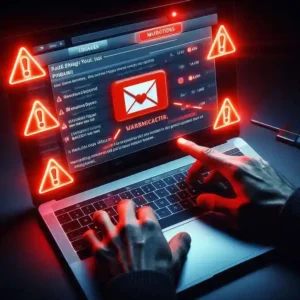
How to Spot a Fake Email (Before You Click)
I almost fell for this once.
An email arrived. Subject: “Your Amazon account has been locked.” It looked real. Had the logo. Had professional language.
I almost clicked the link.
Then I noticed something. The sender’s email was “amazon-support@gmail.com,” not “amazon.com.”
Fake.
Red flags in scam emails:
| Red Flag | What to Look For |
|---|---|
| Urgent language | “Act now!” “Your account will be closed today!” |
| Bad grammar | Spelling mistakes, strange word order |
| Fake sender | The email address doesn’t match the company |
| Requests info | Asking for a password or a credit card |
| Too good to be true | “You won $1000!” |
What to do instead:
Never click links in suspicious emails. Open your browser. Type the website address yourself. Log in normally. If there’s really a problem, you’ll see it there.
Real example I received:
An email said my PayPal account was limited. I didn’t click. I opened my browser, typed paypal.com, and logged in. No message. Fake email.
Quick win: Before clicking any link in an email, ask yourself: “Was I expecting this?”
External link: FTC Phishing Scams
Internal link: Scammers also target freelancers. Read I Lost $500 to a Freelance Scam to see how they operate.
Those Annoying Updates (Yes, You Need Them)
I used to ignore software updates. “Remind me tomorrow” every single time.
Then I learned something scary.
Most updates include security patches. They fix holes that hackers can use to get into your device. When you ignore updates, you leave those holes open.
What needs regular updates:
Your phone’s operating system
Your computer’s operating system
Your browser (Chrome, Firefox, Edge)
Your apps
Your antivirus software
According to cybersecurity experts, many major hacks happened because people didn’t install updates that were already available. The fix was ready. They just ignored it.
What I do now: Turned on automatic updates everywhere. I never click “remind me tomorrow” anymore.
Try this: Check your phone settings right now. Find “Automatic updates.” Turn it on.
Antivirus (Your Safety Net)
Being careful online helps. But antivirus software catches what you miss.
It scans for viruses and malware. It blocks dangerous downloads. It warns you about unsafe websites.
Free antivirus options:
| Software | Best For |
|---|---|
| Windows Defender | Windows users (already installed) |
| Avast Free | Extra features |
| Kaspersky Free | Strong protection |
I use Windows Defender. It’s free and already installed on my computer.
Important: Antivirus is useless if not updated. Make sure automatic updates are on.
Do this now: If you don’t have an antivirus, turn on Windows Defender or download a free option.
Backups (Your Ransomware Defense)
Ransomware is scary. Hackers lock your files and demand money to unlock them.
But here’s the secret. If you have backups, ransomware can’t hurt you. You just restore your files and ignore the hackers.
What to back up:
Important documents
Photos you can’t replace
Work files
Financial records
Where to back up:
External hard drive ($50-100)
Cloud storage (Google Drive, Dropbox, iCloud)
The simple rule: Keep important files in at least two places. Your computer AND the cloud. Or your computer AND an external drive.
I use Google Drive for important files (automatic backup from my phone). Plus an external hard drive for computer backups once a month.
Quick win: Open Google Drive or iCloud right now. Turn on automatic photo backup.
Internal link: Read That Time I Lost 40 Hours of Work to understand why backups matter more than you think.
Stop Oversharing (Hackers Love Details)
I used to share everything on social media. My birthday. My location. My daily routine.
Then I realized. Hackers use this information.
Your birthday is a common security question. Your location tells people when you’re not home. Your pet’s name is another common password hint.
What NOT to share publicly:
Your full birthdate
Your home address
Your phone number
When you’re traveling
Your mother’s maiden name
Your pet’s name
What to do instead:
Review your privacy settings on Facebook, Instagram, and other platforms. Set everything to “Friends only” or “Private.”
Try this: Open your Instagram settings. Go to “Privacy.” Switch to a private account. Takes 30 seconds.
Check If Your Data Is Already Leaked
Here’s a scary tool that I actually recommend.
Have I Been Pwned is a website. You type your email. It tells you if your data has been in any known data breaches.
I typed my email. Two breaches. My password from 2018 was out there on the internet.
What to do if you’re in a breach:
Change that password immediately
Change any other account using that password
Turn on two-factor authentication
Do this now: Go to haveibeenpwned.com. Type your email. See if you’re in any breaches. If yes, change those passwords right now.
External link: Have I Been Pwned
What I Learned From Ramesh’s $500 Mistake
After my friend lost his money, I got serious.
I changed every password. Turned on two-factor authentication everywhere. Started using a VPN on public Wi-Fi. Turned on automatic updates. Backed up my files.
It took me one evening. Maybe 2 hours total.
Now I sleep better. I still use public Wi-Fi. I still shop online. I still check my bank on my phone.
But I do it smarter.
You can too. You don’t need to be a tech expert. You just need to follow these steps.
Quick Summary (What to Do Today)
| Step | Time | Priority |
|---|---|---|
| Turn on two-factor authentication for email | 2 min | Highest |
| Download a password manager | 5 min | High |
| Change your most important passwords | 15 min | High |
| Check haveibeenpwned.com | 1 min | High |
| Install a free VPN for public Wi-Fi | 5 min | Medium |
| Turn on automatic updates | 2 min | Medium |
| Back up your important files | 10 min | Medium |
| Review social media privacy settings | 10 min | Low |
Total time: About 1 hour for the high-priority items.
Internal link: Want to earn money online safely? Read How I Made $100 with AI for legit side income ideas.
FAQ
What’s the one thing I should do today?
Turn on two-factor authentication for your email account. Takes 2 minutes. Biggest impact.
Is online banking safe on my phone?
Yes, but avoid public Wi-Fi. Use your mobile data instead. It’s more secure.
How often should I change passwords?
Every 6-12 months. Or immediately after any data breach.
Are free VPNs safe?
Some are. ProtonVPN is trustworthy. Avoid completely unknown free VPNs.
What’s the most important password to protect?
Your email password. If hackers get your email, they can reset all your other passwords.
Final Thoughts
My friend Ramesh lost $500 because he checked his bank balance on public Wi-Fi.
He’s an IT professional. If it can happen to him, it can happen to anyone.
But here’s the good news. The steps in this guide take one evening. Two hours max.
Strong passwords. Two-factor authentication. VPN on public Wi-Fi. Software updates. Backups.
That’s it. You don’t need to be a cybersecurity expert.
Start today. Turn on two-factor authentication for your email right now. Then move through the other steps one by one.
Protect it like your future depends on it. Because it does.



2 Comments on “Protect Your Personal Data from Hackers”